
Troubleshooting Locks
Low-key answers about our locks
Start with our access guide video. Already watched it? Head to the ‘My Access’ screen in the app. If your unit and the gate are both listed there, you’re connected as expected and the issue is typically something to do with your phone, not the account. You can skip the next question. If they’re not listed, jump to the next question below.
Usually one of two things:
- Your account is behind on payments. Settle the outstanding balance and your access will come back.
- Your Lockvue account uses a different email address to your TAXIBOX account. They have to match. Log out of Lockvue and log back in with the email address on your TAXIBOX account — or create a LockVue account with that email if you haven’t already.
Are you in front of the right unit? Feels like a silly question, but it happens more than you’d think — promise we won’t tell anyone. Check that the unit shown on your My Access screen matches the number on the door you’re standing at. Also, in case there’s a weird connection issue try the sequence a few times and see if that sorts it out.
There’s two red error messages that can appear.
If it’s about notifications, this means they weren’t switched on when the app asked during setup. The access guide video walks you through it. Promise no annoying marketing messages.
To fix it, go into your phone’s settings and turn notifications on for the app. If that’s fiddly, deleting and reinstalling the app is often quicker — just press Allow every time you’re asked.
If it’s an error 401 about permissions, this one is pretty rare but likely means there’s an issue with your account setup. This one we’ll need to fix for you either by resetting your access or giving you access with a new email address.
See the images at the bottom of this page for further clarification.
On the app, tap Login and Register, then Forgot Your Password? It will send the account holder a new password. One thing to avoid: the Code Login screen. It’s not the way in for TAXIBOX customers, and it’s where sometimes people get stuck.
See the images at the bottom of this page for further clarification or open our our reset password guide.
Wrong screen! We don’t use the ‘Code Login’ screen. Click back on ‘Login and register’ and use your email and password to login. If you don’t remember what this is, see question above.
You shouldn’t need to do this but if you’re still stuck, work through these – they clear up most issues:
- Close your app properly by swiping it up and reopen it.
- Reset your phone completely by turning it off and then back on.
- Make sure your low power mode is turned off – it can throttle bluetooth.
- Turn bluetooth off and on.
- Delete the app and reinstall it.
- Login to your account on someone else’s phone.
At each of these steps, try the unlock sequence a few times before giving up. Sometimes it just takes more than one go!
Orange means you’ve waited too long. The padlock needs to be blue — that’s your window. The sequence is:
- Press the button on the padlock so it goes blue.
- Press unlock on your phone as soon as it appears.
- Wait a few seconds — done.
If the lock doesn’t appear on your phone, hit refresh in the app and start again. It might take a go or two to get the rhythm, then it’s second nature.
If you really can’t get it sorted, first of all we really do apologise. Secondly, call us during business hours on 1300 66 55 46 so we can help. Or, email us at local@taxibox.com.au with “urgent” in the subject line and we’ll call you back as soon as we can.
There’s a black handle in the middle of the right-hand door. Push the silver knob on the right in firmly until the door pushes out just a little. Next pull the handle back slowly. The door should open nice and easy!
Forgot Your Password
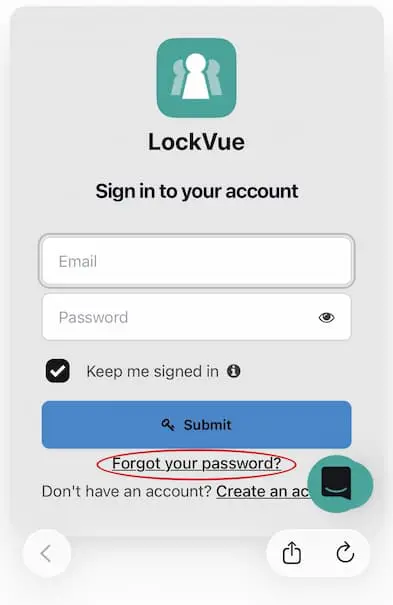
Forgot Your Password
Click this button to reset your password. TAXIBOX does not hold passwords for security reasons.
Example of permissions not being setup correctly
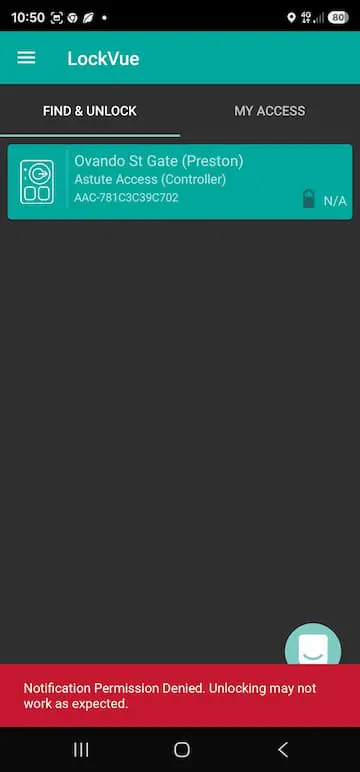
Example of permissions not being setup correctly
Easiest fix is to delete the app, re-install it and press yes when asked to allow notifications multiple times during setup.
Example of account not setup correctly
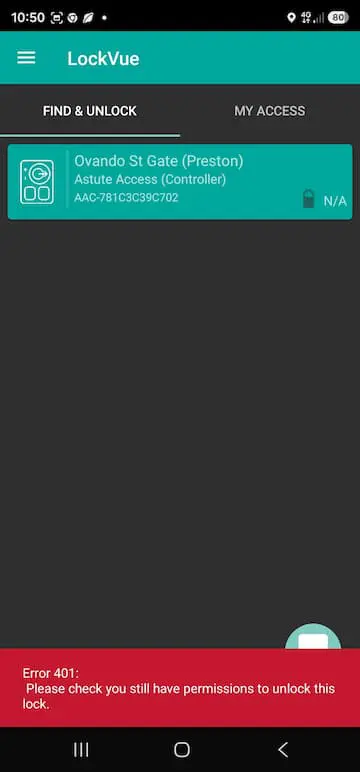
Example of account not setup correctly
Your account may not have been setup with the correct email address. Try again or contact TAXIBOX. A new email may need to be used.
Example of account not registering
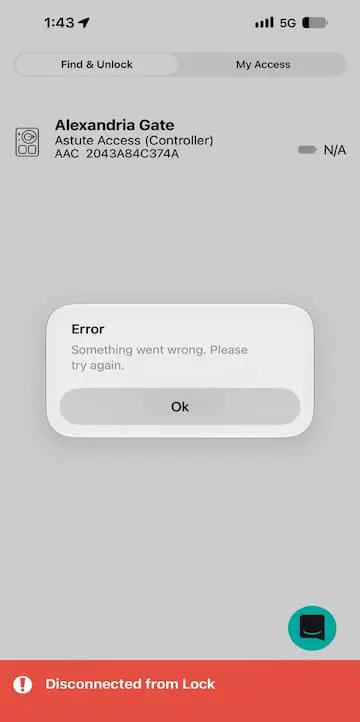
Example of account not registering
This error can occur due to a few different reasons. The solution is still the same: turn the mobile device off and on again and if still not working uninstall the LockVue mobile app and reinstall it.
Our reviews speak for themselves
...with more 5 star reviews than our competitors, combined.



Get TAXIBOX
